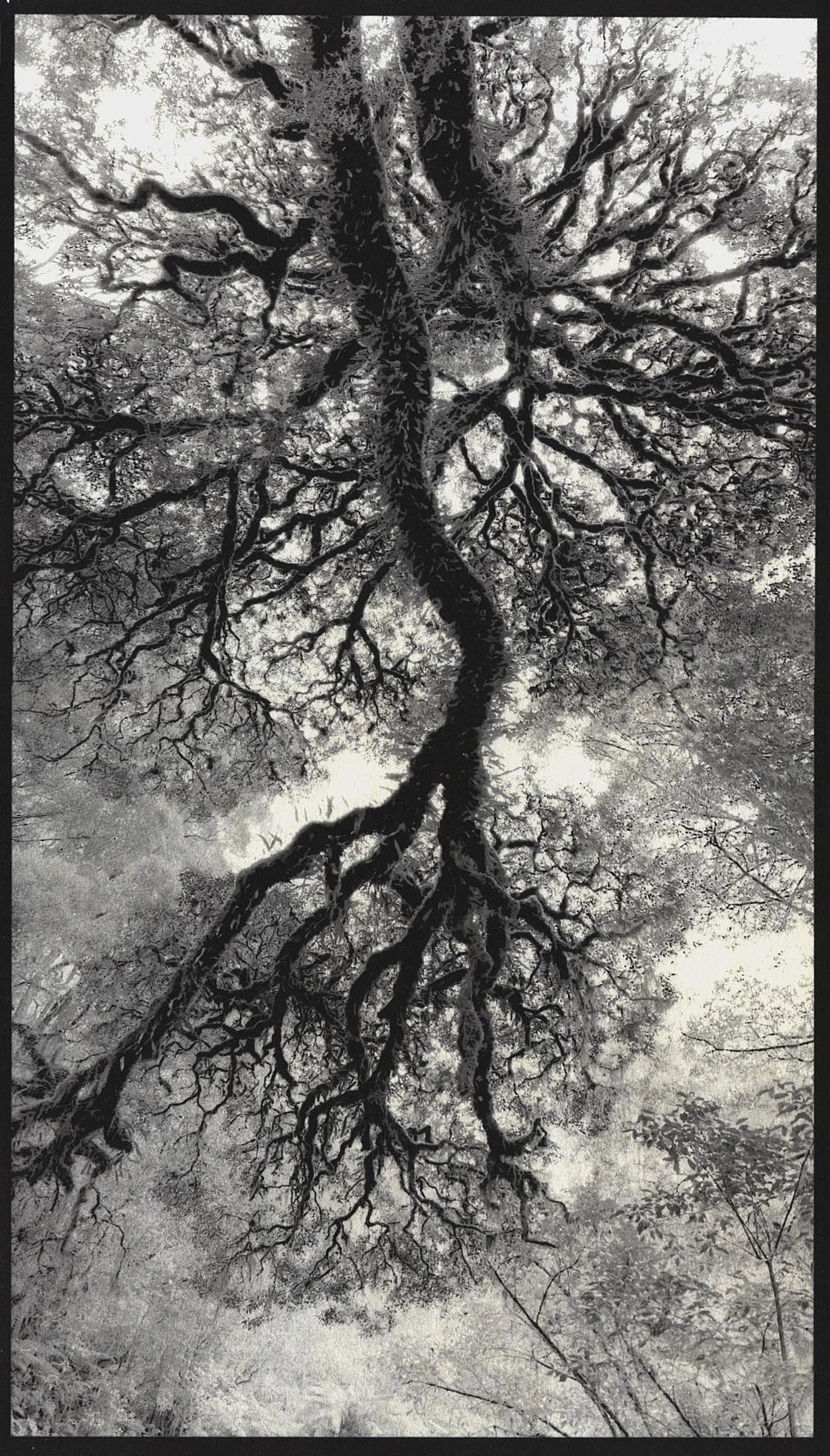
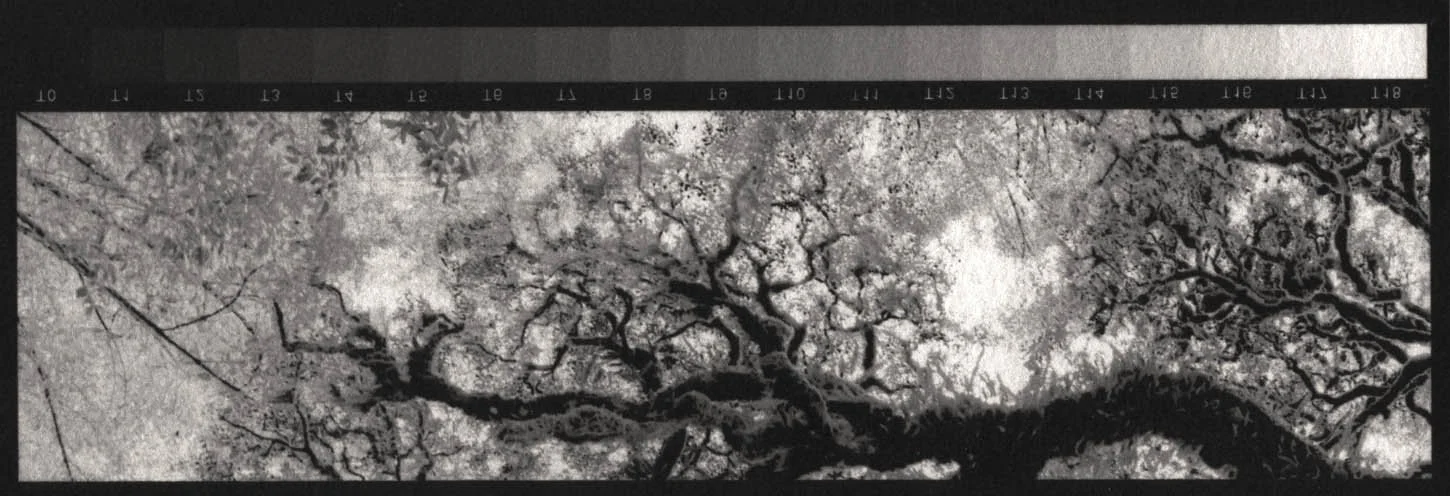
Copy of Carbon Print (Oxide Black) from a TruNeg Negative

Solving the Problem of the Digital Negative

The idea of creating prints on antique and alternative photographic materials from negatives inverted in the editing programs and printed on inkjet printers has generated a great deal of interest and activity worldwide.

However, there is a major problem: the negatives produced by the editing programs do not work.

The reason for this is that the maths used to invert the image is incorrect.

The editing programs use arithmetic to invert negatives, but photographic images require logarithms to be correctly inverted.

Once this is known and the correct mathematics is used, it is a simple matter to use a popular programming language to calculate and plot a photographic negative of any positive image for any photographic process.

The TruNeg application uses Python Matplotlib and Pillow libraries to calculate each pixel’s negative value and create an interactive plot to adjust the negative to compensate for different processes.

Working with Different Photographic Materials

Photographic materials, to varying degrees, have low contrast in the shadows and highlights, and a print of a correctly inverted negative will, to some extent, have blown-out highlights and overly dark shadows.  

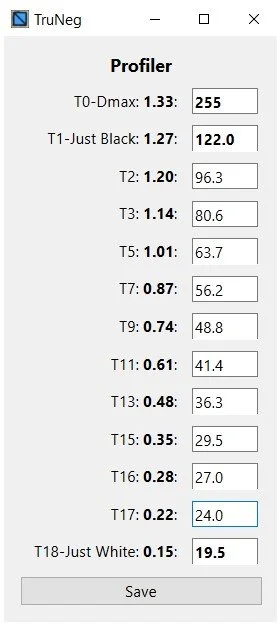
To counteract this, TruNeg has tested and created profiles to adjust the standard negative and correct this effect for several popular processes. The profiles are generic, and further tweaking by the user will probably be needed to produce that “perfect” print.

Making a Salt Print

TruNeg Negative

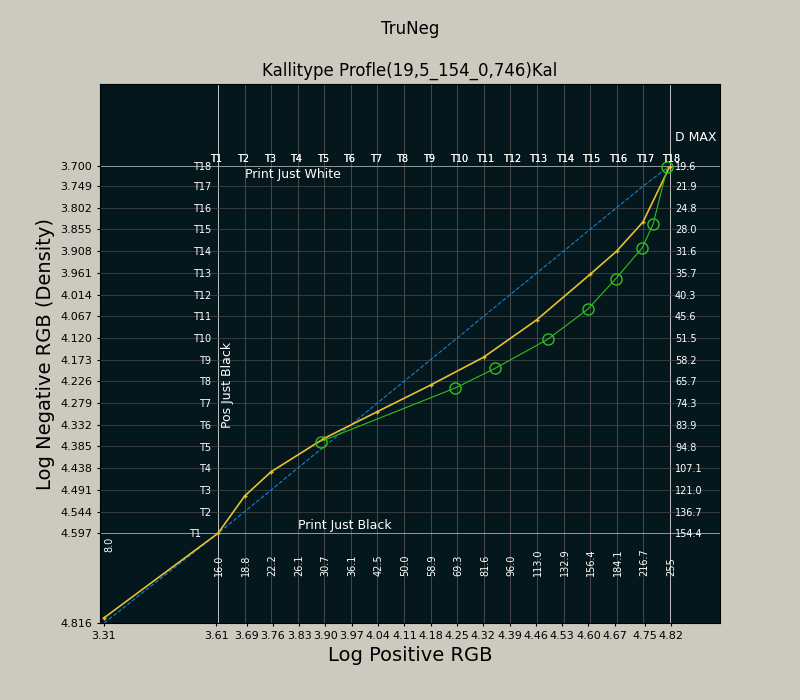
Plot of a Classic Cyanotype curve

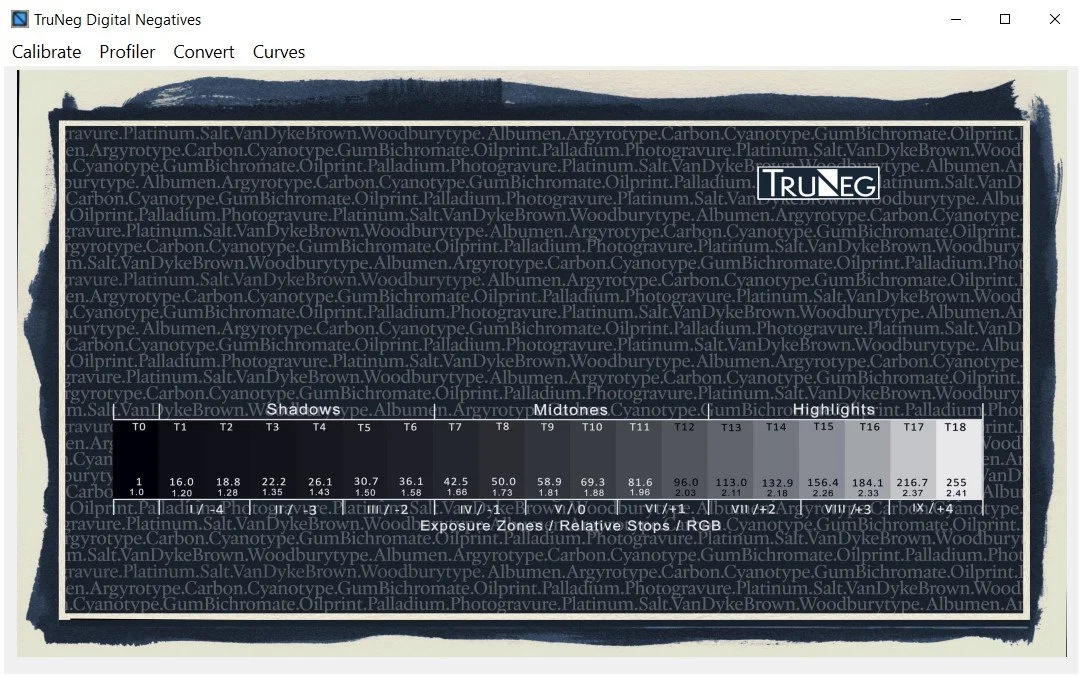
The Template Step Wedge showing the tones correlating to the positive input gridlines.

The TruNeg Application

Calibrate:

Calibration is the process of establishing the exposure and finding the contrast parameters of the printer/process combination. These are entered into the program along with a copy of the process profile and saved as a preset.

The profile divides the curve into a series of gradients to counteract the low contrast in the highlights and shadows of the selected process. See below.

Convert:

The image is imported into the app, the Preset is loaded and the negative calculated. The Python modules identify each pixel in the image and calculate the negative value according to the gradient that the positive pixel value falls on.

When conversion is complete, the negative is automatically exported back to the image’s folder, ready for printing by the editing program.

Curves:

After assessing a test print, the user can tweak the plot by clicking on the plot to construct a new curve to lighten or darken unsatisfactory tonal zones.

The grid shows the steps in the TruNeg stepwedge. These guide the user in deciding how much to modify the curve, whether the T15 highlight should be one or two steps darker, or the T6 shadow half a step lighter. This gives the user full control over the print, whether to touch up the highlights or drag down the midtones and shadows to make a more dramatic print.